
The published run uses the published script. A saved node is not evidence that it ran.
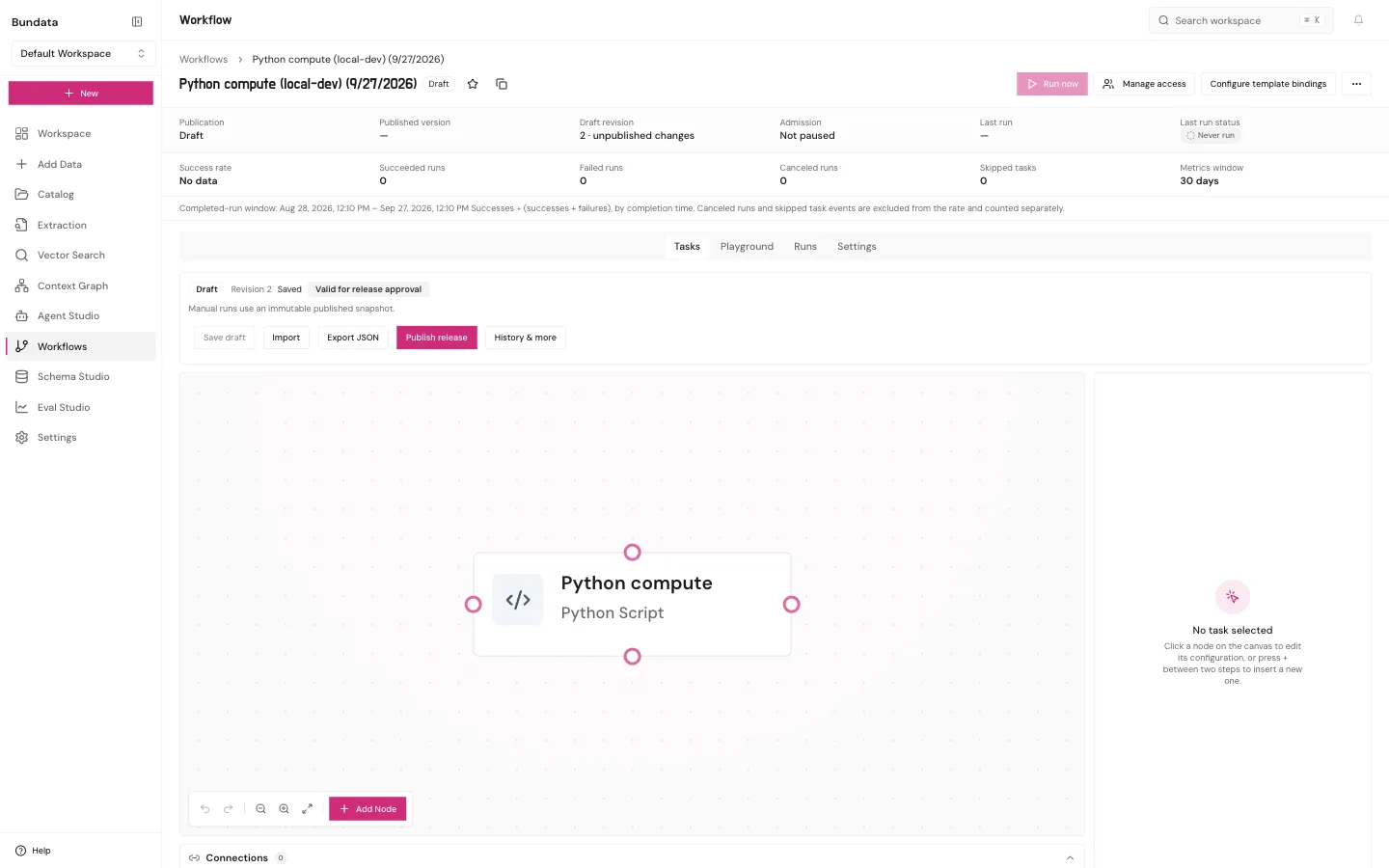
Approved Python
Add the approved Python compute step to a published workflow and read the run. Hands-on time is about 20 minutes. Worker time is extra.
Purpose
You can tell authoring validity from a worker result. Level: editor. Mode: stored. The HTTP upload recipe is ordinary Python on your machine. This page is the in-product node. They are different.
Prerequisites
An approved managed script version is already available in the workspace. You cannot pip install from the node. GPU toggles and a general Code component are not part of this contract.
Sample
Script intent: read the numeric window from the sample note’s extracted field and pass it through. Input is the collection field, not a file you attach at run time. Output is a number or null.
Steps
- Add the Python node on the canvas. Confirm the panel shows an approved version, not a free-text shell.
- Save, publish, and run the release. The run uses the script that was on that release.
- If you edit the draft afterward, the finished run does not change.
- Read the run output. Null means the field was empty. It does not mean the node was skipped in secret.
Fields
| Item | Effect |
|---|---|
| Approved version id | The script the release is allowed to run. |
| Saved node | Authoring only. |
| Published release | The snapshot a run executes. |
| Dependency lock on the approved version | Not an invitation to add packages. |
Example
Do not send this as a Bundata install:
python3 upload_harbor_note.pyThat command is your own file from the upload recipe. There is no Bundata package on the package index.
Recovery
If the worker rejects the node, the script is not approved for that runtime. Do not switch to a local shell and call the result a Bundata run. Fix the approval, publish, and run again.
Limits
No per-node Run, no Run Next, no arbitrary requirements file, and no notebook GPU switch on this page.
Check
Success: the run record names the approved script version and a number or null. Failure: the canvas shows the node, but there is no run id.